
What your client sees
How the app looks from your client's side: the Today screen, logging sets, choosing another day, the summary, and where you see a finished workout.
Your client follows the plan in an app on their phone. Knowing their screens helps you answer questions and find their workouts on your side. They can add the app to their Home Screen. The steps are on the page for clients, which you can send them.
What a workout looks like
- The Today screen shows today's workout: plan and workout name, number of exercises and estimated time. The client taps Start workout, or Continue workout if one is open. If you change an exercise, the sets or the reps, they see it above the button (Your trainer changed this workout).
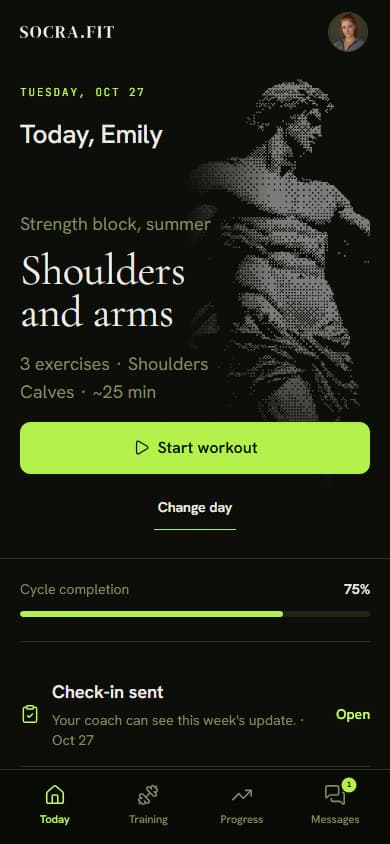
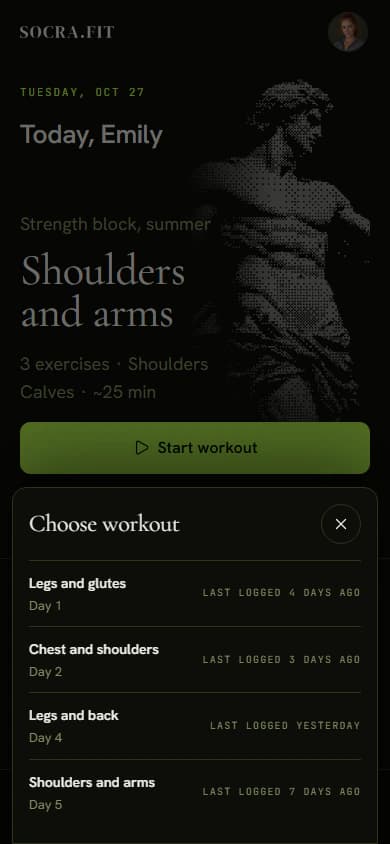
- On the Today screen, Change day below Start workout opens the Choose workout list with every day of the cycle and when it was last done, for example Last logged yesterday or Not logged yet. The client taps a day and trains it instead. Change day shows when the cycle has more than one workout. If another workout is open, the app asks whether to continue it first.
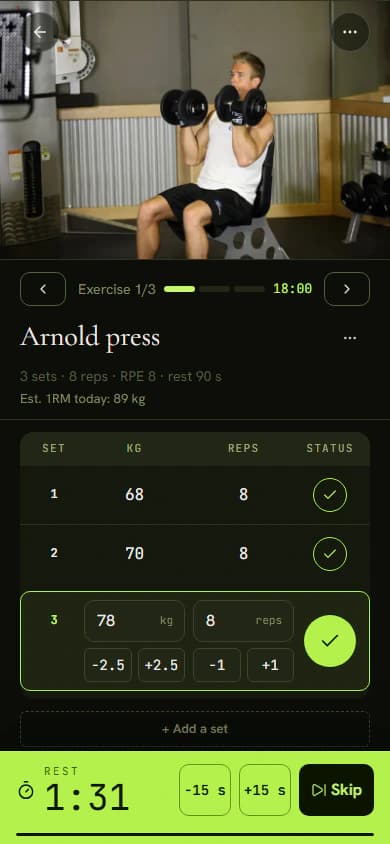
- The tracker shows one exercise at a time, with a row of weight and reps for each set. Reps are prefilled from the plan and weight from the last workout. The client adjusts the numbers and taps the round check mark on the set's row. If the plan has a rest time, a countdown starts. It can be shortened or extended by 15 seconds, or skipped. After an exercise's last set, the tracker moves on.
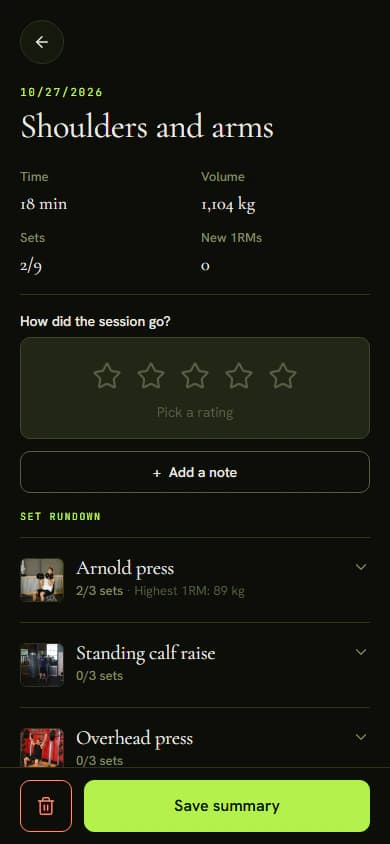
- At the end the client taps Finish workout. The summary shows Time, Volume, Sets and New 1RMs. They can rate the session (How did the session go?) and write you a note with Add a note. The workout closes only after Save summary. Until then it stays open.
What you see
Find the saved workout on the client's Training tab under Recent workouts. Rows are grouped by week and show date, sets, time, volume and rating. Click a row to see the sets. View detail opens the full workout with the Workout comment field. The client gets an email with your first comment.
Today's queue on the Dashboard lists a workout when the client left a note (on the workout or on an exercise) or rated it 2/5 or lower. Tick it off there once you have looked.
Tips
- Until a client has a plan, Today shows No plan assigned yet and a Message your coach button.
- You can log a workout for a client, for example in a session together. On the Training tab, click Log workout. Whoever logs the first set records that workout, and the client then sees that their trainer is recording it.
The next article, Check-ins, covers the weekly report from your client and how to reply.