
Back to help
Check-ins
Set a client's weekly check-in day, go through submitted check-ins in the queue, and reply with a comment.
A check-in is a weekly report from your client: weight, how the week felt, notes, and optionally measurements and photos. It tells you how a client is doing between workouts, and you reply in the same place.
Set the check-in day
- Open Clients in the menu and pick a client.
- Go to the Check-ins tab.
- Choose a weekday in Check-in day. The default is Sunday. The change saves right away.
- Send an email reminder is switched on. On the check-in day it emails the client if no check-in has arrived that week. Untick it to turn the reminder off.
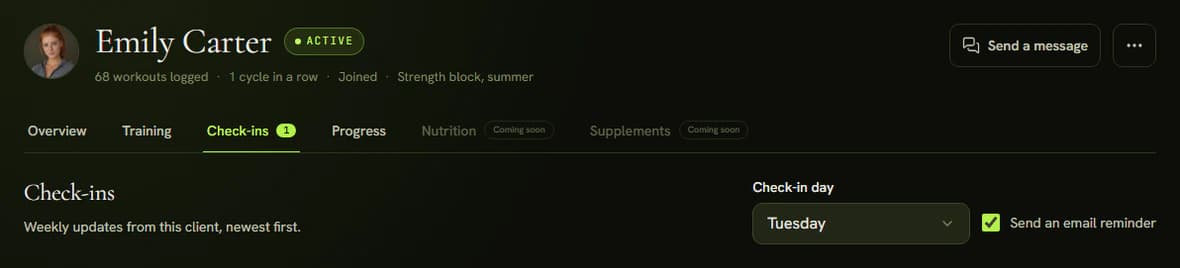
The day does not decide when a check-in can be sent. From the start of the plan, the client has the check-in on Today all week. On the check-in day it also says Today is your check-in day.
Go through check-ins
- Click Check-ins in the menu. The number next to it is how many are waiting for review.
- The queue lists the latest eight weeks, newest first. The Status filter starts on To review. Switch it to Reviewed or All, or pick someone in Client. Show older loads earlier ones.
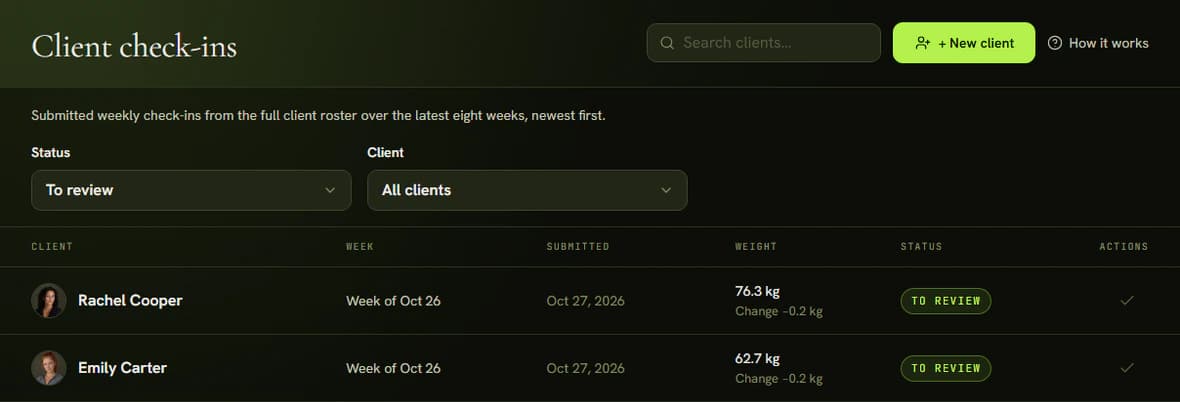
- Click a row. The detail shows the rating, weight, measurements, the client's note and photos.
Reply to your client
- Write your reply in the Comment for client field.
- Click Mark as reviewed. The button saves the comment first and then marks the check-in. Replying counts as reviewing.
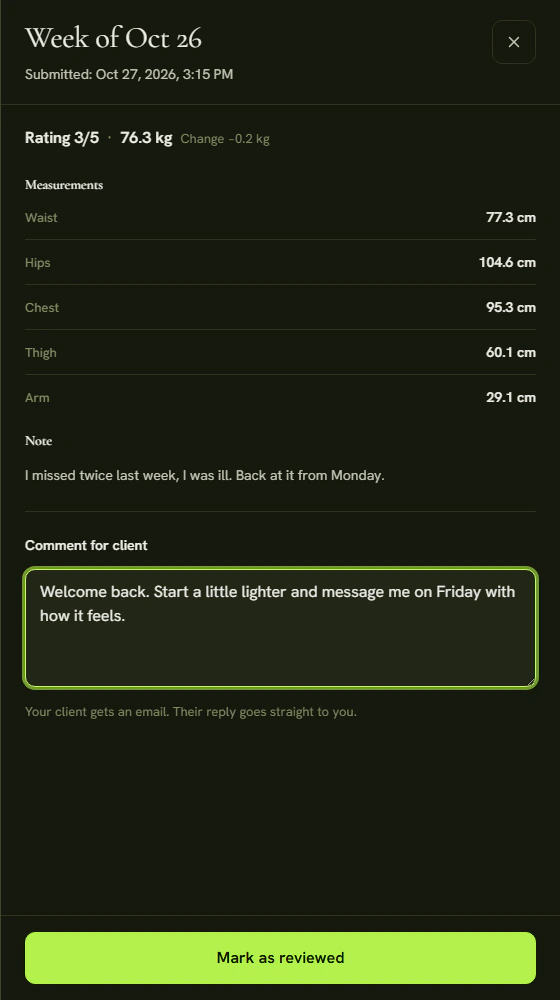
The client gets an email only with your first comment. If they reply, the reply goes straight to you. They see later edits in the app. After an edit the button changes to Save comment.
Tips
- You can mark a check-in without a comment, with the button in the detail or the tick in the queue row. Click Reviewed to undo it.
- A new check-in also appears in the queue on the Dashboard and opens in the same detail.
- On the client page, the squares under Check-in consistency show which weeks the client submitted. An empty square is a week without a check-in.
Related articles