
Socra.fit for clients
How to join your trainer, add the app to your phone's Home Screen, log a workout and send your weekly check-in.
Your trainer invited you to Socra.fit. The app holds your plan, you log workouts in it, and once a week you send your trainer a check-in. It runs in your phone's browser, and you can add it to your Home Screen so it opens like any other app.
Join
- Open the link from your trainer on your phone. It goes to app.socra.fit. With only a code, open app.socra.fit, tap Sign up, choose I'm a client, enter the Invite code and tap Continue.
- Enter your email and a password (at least 8 characters) and tap Create client account. If you get an email with a confirmation link, confirm it and log in with the same email and password.
- On first use, you first tap I agree to confirm you share your health data with your trainer. Then you fill in a short one-time setup: goal, weight, height and health limits. Your trainer uses the answers for your first plan.
The code works once and is valid for seven days. If it expires, ask your trainer for a new one.
Add the app to your Home Screen
Once the setup is done, the Today screen shows a card called Socra.fit as an app. It only appears on phones.
- iPhone: in Safari, tap the Share button in the bottom toolbar, choose Add to Home Screen and confirm. The card shows the same steps.
- Android: tap Add to Home Screen on the card and confirm in the browser's dialog. The card appears in browsers that offer installing, such as Chrome.
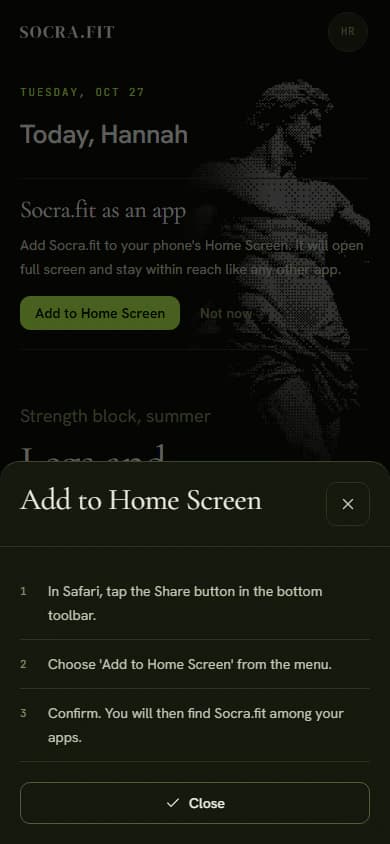
Tap Not now to dismiss the card.
Log a workout
- On Today, tap Start workout.
- For each set, check the weight and reps, change them if needed, and tap the round check mark on the set's row. The rest between sets counts down at the bottom. Tap Skip to skip it.
- After the last exercise, tap Finish workout. On the summary, rate the session (How did the session go?), add a note for your trainer, and tap Save summary to close the workout.
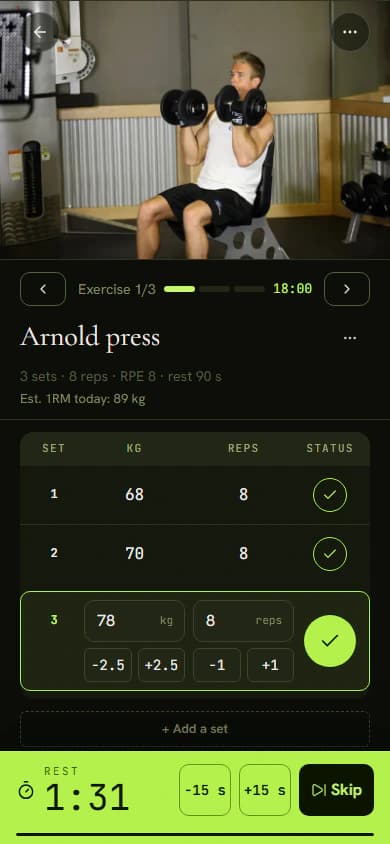
For another day of the plan, tap Change day below Start workout.
Send your check-in
Once a week you send your trainer a short report. The check-in card is on Today all week. On the day your trainer picked, it says Today is your check-in day.
- Tap Send check-in.
- Fill in Current weight and How do you feel?. Both are required. Notes, Progress photos and measurements (Add measurements) are optional.
- Tap Submit check-in.
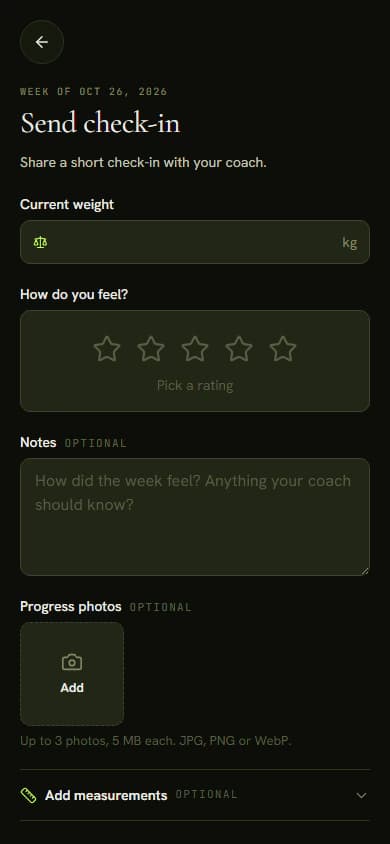
Your trainer can leave a comment. You get an email with the first one, and you can read it in the app by tapping the Check-in sent row on Today.