
Print a plan or save it as PDF
How to print a training plan or save it as a PDF from the plan overview, and what the printed sheet contains.
You can print a plan or save it as a PDF straight from the plan overview. It suits a client who does not want a phone in the gym, or one who wants the schedule on the fridge. The sheet is A4.
How to do it
- Open Plans in the menu and pick a plan. To open a client's own plan, go to their Training tab and click Edit plan.
- At the top of the plan overview, click Export. The button sits next to Duplicate plan.

- A preview of the sheet opens. Click Print / save as PDF.
- In the print window, choose a printer. For a PDF, choose a save-as-PDF destination. Its name depends on the browser.
- Back takes you to the plan, or to the client's Training tab if you opened a client's own plan. The bar with the buttons does not print.
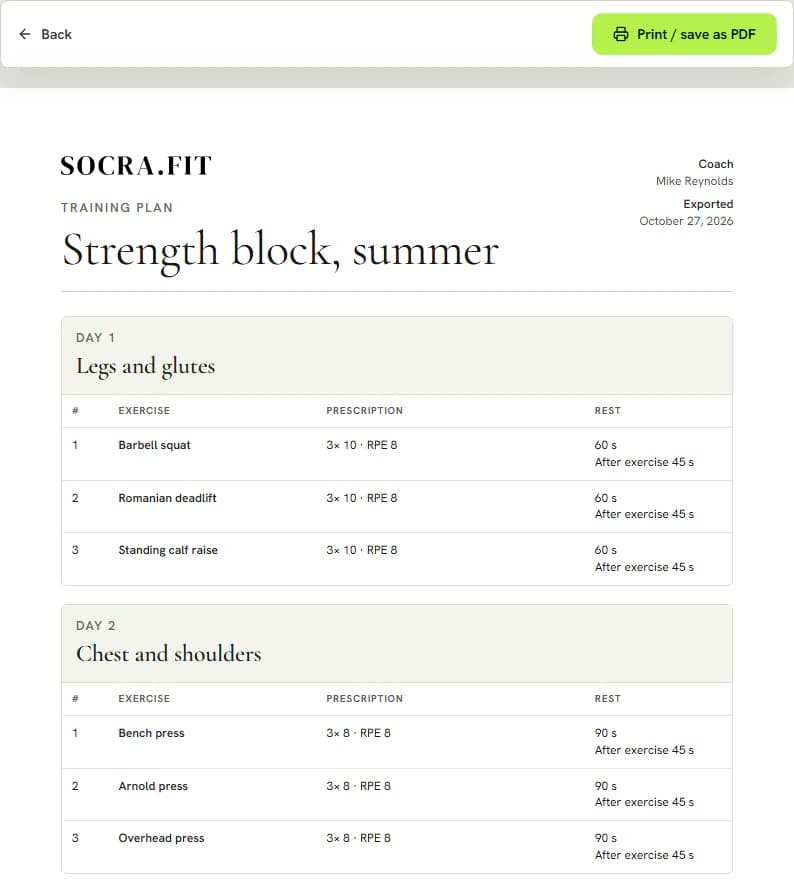
What is on the sheet
The header has the Socra.fit logo, the plan title, the coach's name (Coach) and the date (Exported). A plan assigned to a client also shows the client's name (Client).
Below the header the days follow one after another. Each workout has a heading such as Day 1, its title, and a workout note if there is one. Rest days are on the sheet too.
Exercises are in a table with the columns #, Exercise, Prescription and Rest. The prescription shows the number of sets, the reps and the RPE. A pair of exercises in a superset is marked Superset with the letters A and B and a rest between rounds. Alternatives are listed under the exercise name.
Tips
- A plan under Plans is a template and has no client name. For a sheet with the client's name, print the plan assigned to that client.
- The workout note prints. Notes on single exercises and the plan note do not.
- A PDF is a snapshot of the plan at the moment you export it. After you change the plan, create it again.
Related articles