
Messages with clients
Write to clients inside Socra.fit: the inbox, the chat on the client page, attaching a workout or check-in, and sending photos.
Messages is a private chat with a client who has joined. It suits short feedback on a workout and questions about a check-in. The client replies in the app and the answer lands in the same thread.
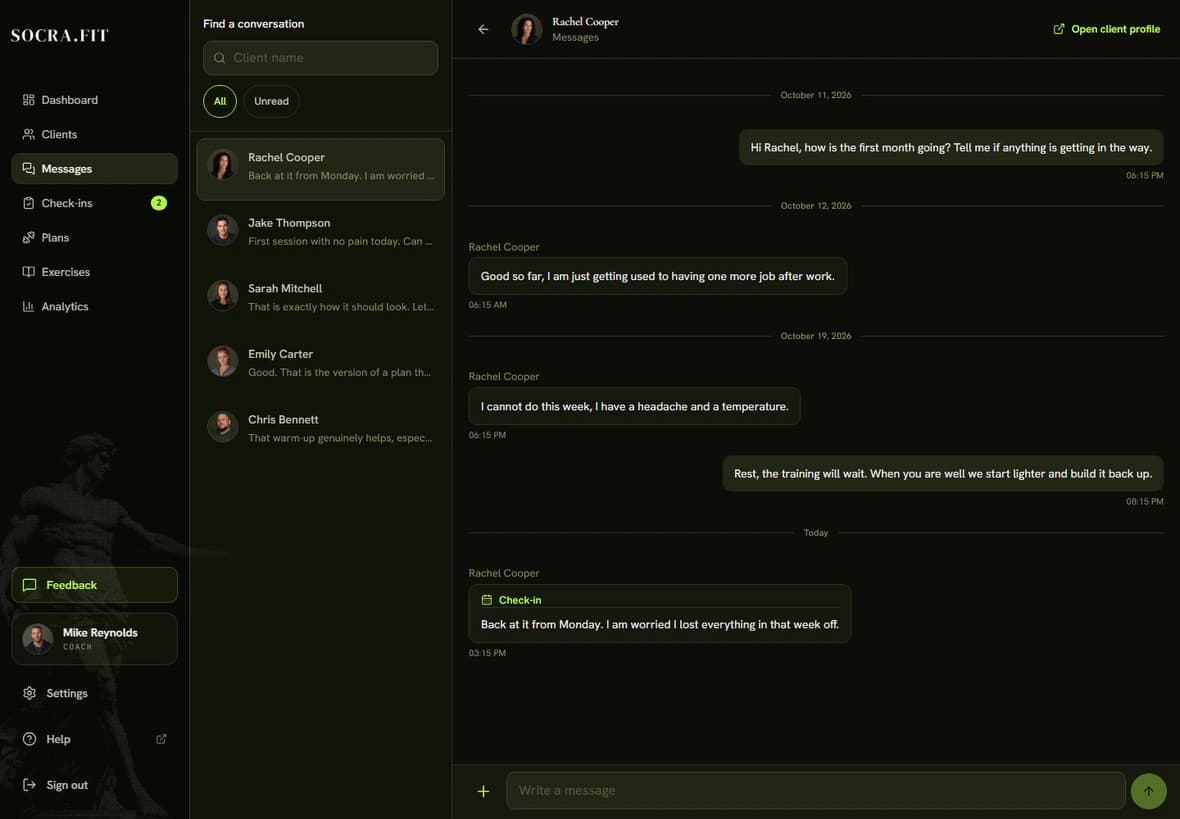
The inbox
- Open Messages in the menu. Conversations are on the left and the open thread is on the right. Each conversation shows the last message and the number of unread ones.
- Find a client with Find a conversation. The Unread switch keeps only the conversations waiting for you.
- Type in the Write a message field and send with the arrow button to the right of the field. On a computer Enter also sends, and Shift+Enter starts a new line.
Chat on the client page
On a client's page, Send a message opens the chat in a panel over the profile. You write while adherence and history are still at hand. Open in messages moves the conversation to the inbox. The button is there for clients who have joined. If your work with a client has ended, the chat stays read only.
Attaching a workout or check-in
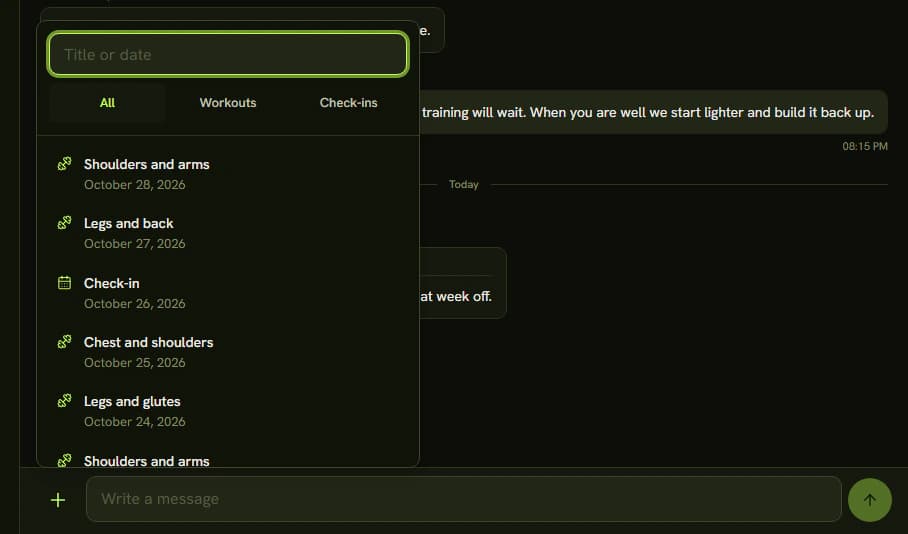
When you ask about a specific workout or check-in, attach it to the message so the client knows what you mean.
- Click + to the left of the message field.
- Choose Attach a workout or check-in.
- Search with Title or date, or switch between All, Workouts and Check-ins.
- Click a record. It appears above the message field, and the cross on the attached record takes it off again.
The list holds the client's workouts and check-ins. Workouts that are still weeks away are not offered. The attached record shows on the message as a link. For you it opens the workout detail, or the check-in on the client's page.
Photos
Add a photo with +: Choose from library or Take photo. On a computer you can also drag a photo into the field or paste it. A message carries one photo (JPG, PNG or WebP, up to 10 MB). Before sending, Remove photo takes it off.
Tips
- A message can have at most 4,000 characters. The counter shows up only when you get close to the limit.
- A message that did not go through stays marked Not sent. Use Send again to retry.
- The number of unread messages shows beside Messages in the menu, so you see it on every page.