
Back to help
Exercise library
How to search and filter exercises, open their detail, and create your own exercise with an image that you can then use in your plans.
The library is the list of exercises you build plans from. Use it to find a movement quickly or to add an exercise that is missing. A custom exercise can have an image, instructions and a video link.
Find an exercise
- Open Exercises in the menu.
- Pick the Library, Favorites or Custom tab.
- Type part of a name into Search exercise or equipment. Search ignores accents and checks the English and Czech names, the muscle group and the equipment.
- Narrow the list with the Muscle group and Equipment filters. All clears a filter.
- Click a row to open the detail. It shows images, tags, an Open video link when the exercise has one, and the Instructions step by step.
- The star on a row adds the exercise to your favorites.
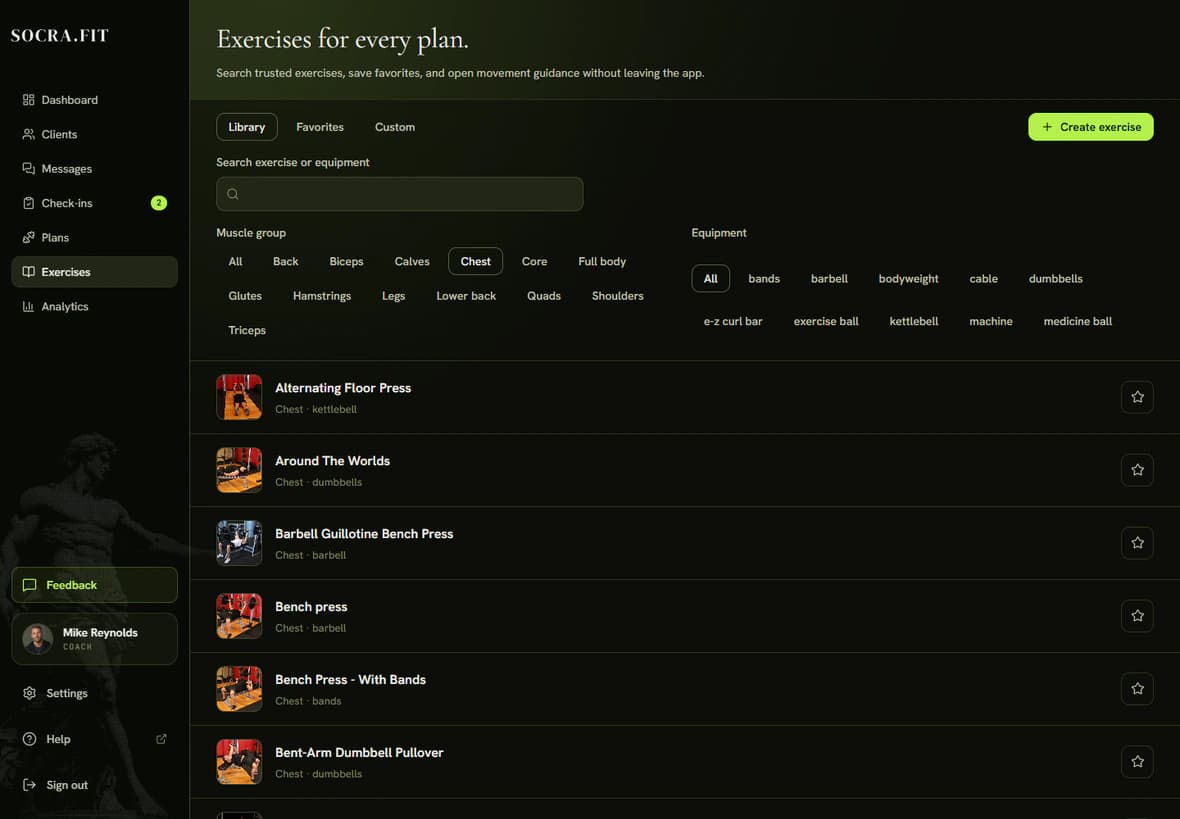
The list loads in parts. Show more brings in the next exercises.
Create your own exercise
- Click Create exercise.
- Fill in Exercise name and choose a muscle group in the Muscle group field. The exercise is not saved without both.
- Under Equipment, pick from the list or choose Custom equipment and type your own.
- Write the steps in Instructions. Each line shows as one step in the detail.
- Under Exercise image, upload a JPEG, PNG or WebP file up to 2 MB. You can also add a Video link.
- Click Create exercise.
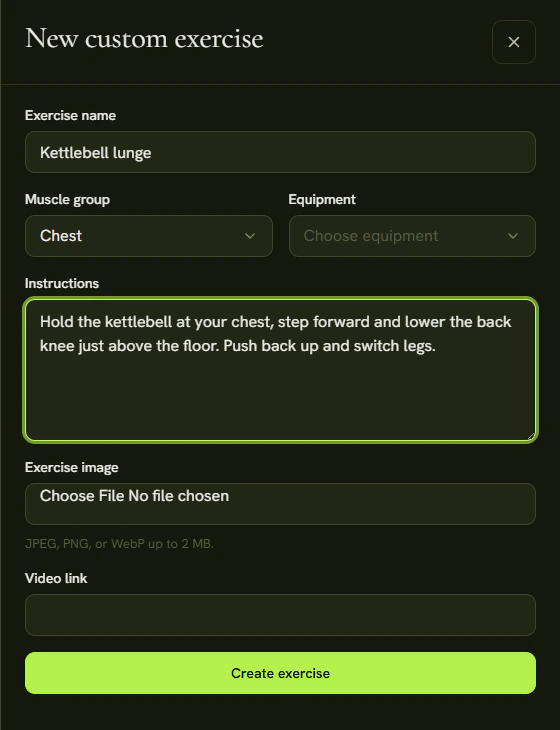
The new exercise appears on the Custom tab. You find the same tabs when you build a plan, so you add it to a workout like any other exercise.
Your own exercises also get a pencil icon (edit) and a trash icon (delete) in the row. Deleting an exercise does not remove the history of workouts that already used it.
Tips
- Put the exercises you use most on the Favorites tab. They are then on one tab when you build a plan.
- The name and the instructions are saved exactly as you write them, without translation. A client using the app in Czech sees the same text.
- A custom exercise has one image. Uploading a new one when you edit replaces the old one.