
Add a client
How to add a client by name, send the invite as a QR code, link or code, and what the client sees when they join.
You add a client by name only, and they enter their own email when they join. The invite links their account to yours, so you can assign a plan and follow their workouts.
Add the client
- Open Clients.
- Click + New client. On a phone it is the add-person icon in the top bar. Until you have a first client, the button also sits in the middle of the page.

- Type the name in Client full name and click Create invite.
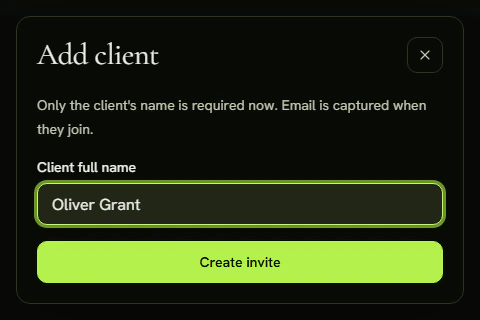
Send the invite
The dialog now shows a QR code, a link and a code. Use whichever fits:
- If you are together, show the client the QR code.
- Click Copy next to the link and send it in a message. On a phone there is also Share.
- Read out the Invite code, for example over the phone.
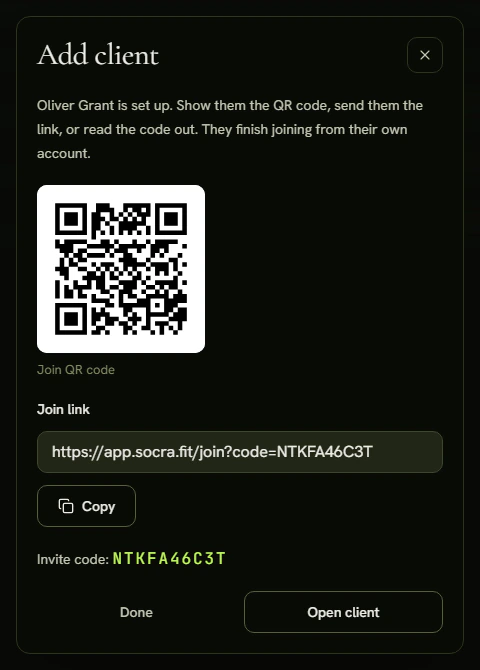
Close the dialog with Done. Open client takes you straight to their page. The code works once and expires after seven days. If it expires, open the client, click Regenerate code on the Overview tab, and the old code stops working.
What the client sees
The client opens the link, enters an email and a password (at least 8 characters) and clicks Create client account. They can also choose Continue with Google. Without the link, they type the code on the Join your coach page and confirm it with Check code.
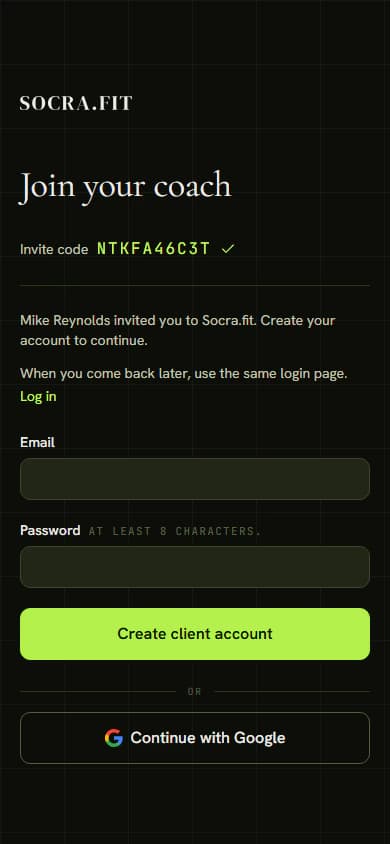
Next they fill in a short onboarding form with their goal, weight, height and health notes. You see the answers in the Onboarding section of the client's Overview tab. Then the client lands on Today and waits for a plan.
Tips
- Until the client joins, they show as Invited in your client list.
- If you open the code in your own trainer account, the app tells you it is your code. The client has to finish joining from their own account.
- If you have no free spot for another client, the dialog says so and offers View your plan. More in Subscription.